Altijd en overal verkopen,
zelfs 100% offline

De order- en offertetool voor B2B-vertegenwoordigers. Neem bestellingen op bij de klant — 100% offline — en stuur ze direct door naar het hoofdkantoor. Crasht nooit, reageert direct.

„Door een verkoper, voor verkopers."

Nu Activeren

Vendez toujours et partout,
même 100% hors ligne

L'outil de commande et d'offre pour les commerciaux B2B. Prenez les commandes chez le client — 100% hors ligne — et envoyez-les directement au siège. Ne plante jamais, réagit instantanément.

« Par un commercial, pour les commerciaux. »

Activer maintenant

Sell anytime, anywhere,
even 100% offline

The order and quote tool for B2B sales reps. Take orders at the customer — 100% offline — and send them straight to head office. Never crashes, instant response.

"By a salesperson, for salespeople."

Activate Now

Venda siempre y en cualquier lugar,
incluso 100% sin conexión

La herramienta de pedidos y ofertas para comerciales B2B. Tome pedidos en casa del cliente — 100% sin conexión — y envíelos directamente a la central. Nunca se cuelga, respuesta instantánea.

«Por un vendedor, para vendedores.»

Activar ahora

Verkaufen Sie immer und überall,
auch 100% offline

Das Bestell- und Angebotstool für B2B-Außendienstler. Nehmen Sie Bestellungen direkt beim Kunden auf — 100% offline — und senden Sie sie sofort an die Zentrale. Stürzt nie ab, reagiert sofort.

„Von einem Verkäufer, für Verkäufer."

Jetzt Aktivieren

Krachtige B2B Functionaliteiten

Alles wat uw verkoopteam nodig heeft, op één scherm.

Fonctionnalités B2B Puissantes

Tout ce dont votre équipe de vente a besoin, sur un seul écran.

Powerful B2B Features

Everything your sales team needs, on one screen.

Potentes Funciones B2B

Todo lo que su equipo de ventas necesita, en una sola pantalla.

Leistungsstarke B2B-Funktionen

Alles, was Ihr Verkaufsteam braucht, auf einem Bildschirm.

📵

100% Offline Werking100% Hors Ligne100% Offline100% Sin Conexión100% Offline-Betrieb

Geen internet op de werf? Geen probleem. Alle data blijft veilig lokaal opgeslagen.Pas d'internet sur le chantier ? Pas de problème. Toutes les données sont stockées localement.No internet on site? No problem. All data stays safely stored locally.¿Sin internet en la obra? No hay problema. Todos los datos se guardan localmente de forma segura.Kein Internet auf der Baustelle? Kein Problem. Alle Daten bleiben sicher lokal gespeichert.

💬

WhatsApp & E-mail OrdersCommandes WhatsApp & E-mailWhatsApp & Email OrdersPedidos por WhatsApp y E-mailWhatsApp- & E-Mail-Bestellungen

Verstuur bestellingen met één tik via WhatsApp of e-mail. Automatisch opgeslagen in historiek en statistieken.Envoyez des commandes en un clic via WhatsApp ou e-mail. Sauvegardé automatiquement dans l'historique.Send orders with one tap via WhatsApp or email. Automatically saved in history and statistics.Envíe pedidos con un toque vía WhatsApp o e-mail. Se guardan automáticamente en el historial y las estadísticas.Senden Sie Bestellungen mit einem Tipp per WhatsApp oder E-Mail. Automatisch in Verlauf und Statistik gespeichert.

🧾

Facturen & Creditnota'sFactures & Notes de CréditInvoices & Credit NotesFacturas y Notas de CréditoRechnungen & Gutschriften

Automatische nummering, Belgische gestructureerde mededeling, BCE-nummer, dashboard betaald/te laat.Numérotation automatique, communication structurée belge, numéro BCE, tableau de bord payé/en retard.Auto numbering, Belgian structured communication, BCE number, paid/overdue dashboard.Numeración automática, comunicación estructurada belga, número BCE, panel de pagado/vencido.Automatische Nummerierung, belgische strukturierte Mitteilung, BCE-Nummer, Dashboard bezahlt/überfällig.

🎯

Acties & Promoties NIEUWActions & Promotions NOUVEAUActions & Promotions NEWAcciones y Promociones NUEVOAktionen & Promotionen NEU

Paletkorting, gratis bij aankoop, gratis bij palet(s), gratis kg/liter. Verschijnen automatisch in de bestelling.Remise palette, gratuit à l'achat, gratuit à l'achat de palette(s), gratuit kg/litre. Apparaissent automatiquement.Pallet discount, free on purchase, free on pallet(s), free kg/litre. Appear automatically in the order.Descuento por palet, gratis por compra, gratis por palet(s), gratis kg/litro. Aparecen automáticamente en el pedido.Palettenrabatt, gratis beim Kauf, gratis pro Palette(n), gratis kg/Liter. Erscheinen automatisch in der Bestellung.

☁️

Cloud Back-up (Dropbox)Sauvegarde Cloud (Dropbox)Cloud Backup (Dropbox)Copia en la Nube (Dropbox)Cloud-Backup (Dropbox)

Verbind met Dropbox voor automatische back-up. Herinnering na 7 dagen. PIN-beveiliging bij opstarten.Connectez Dropbox pour la sauvegarde automatique. Rappel après 7 jours. Protection par code PIN.Connect Dropbox for automatic backup. Reminder after 7 days. PIN protection at startup.Conecte Dropbox para copia automática. Recordatorio tras 7 días. Protección por código PIN al iniciar.Verbinden Sie Dropbox für automatisches Backup. Erinnerung nach 7 Tagen. PIN-Schutz beim Start.

📊

Statistieken & HistoriekStatistiques & HistoriqueStatistics & HistoryEstadísticas e HistorialStatistik & Verlauf

Topverkopen per product, omzet per klant/maand, totale CA per jaar/week. Per klant: volledig bestelhistoriek.Meilleures ventes par produit, CA par client/mois, CA total par an/semaine. Historique complet par client.Top sales by product, revenue per client/month, total revenue per year/week. Full order history per client.Ventas top por producto, facturación por cliente/mes, total por año/semana. Historial completo por cliente.Topverkäufe pro Produkt, Umsatz pro Kunde/Monat, Gesamtumsatz pro Jahr/Woche. Pro Kunde: vollständiger Bestellverlauf.

📄

PDF DocumentenDocuments PDFPDF DocumentsDocumentos PDFPDF-Dokumente

Proforma (rood P), Offerte (paars O), Factuur (F) — met logo, huiskleur, kop/voet per taal en twee bankrekeningen.Proforma (P rouge), Offre (O violet), Facture (F) — avec logo, couleur maison, en-tête/pied par langue.Proforma (red P), Quote (purple O), Invoice (F) — with logo, brand color, header/footer per language.Proforma (P rojo), Oferta (O morado), Factura (F) — con logo, color corporativo, encabezado/pie por idioma.Proforma (rotes P), Angebot (violettes O), Rechnung (F) — mit Logo, Hausfarbe, Kopf-/Fußzeile pro Sprache und zwei Bankkonten.

👥

KlantenbeheerGestion ClientsClient ManagementGestión de ClientesKundenverwaltung

Tarief V (standaard) of X (speciaal) per klant. Adres, telefoon, e-mail, BTW-nr, BCE-nr. Import via CSV.Tarif V (standard) ou X (spécial) par client. Adresse, téléphone, e-mail, n° TVA, n° BCE. Import CSV.Rate V (standard) or X (special) per client. Address, phone, email, VAT no., BCE no. CSV import.Tarifa V (estándar) o X (especial) por cliente. Dirección, teléfono, e-mail, nº IVA, nº BCE. Importación CSV.Tarif V (Standard) oder X (Spezial) pro Kunde. Adresse, Telefon, E-Mail, USt-Nr., BCE-Nr. Import per CSV.

🚚

Franco LeveringLivraison FrancoFree Delivery ThresholdEnvío Gratuito (Franco)Frei-Haus-Lieferung

Gratis transport vanaf 330 l+kg (configureerbaar). Paletkorting: 1 pal -8% · 5 pal -10% · 10 pal -14% · 15 pal -20% · 33 pal -25%.Transport gratuit à partir de 330 l+kg (configurable). Remise palette: 1 pal -8% · 5 pal -10% · 10 pal -14% · 15 pal -20% · 33 pal -25%.Free shipping from 330 l+kg (configurable). Pallet discount: 1 pal -8% · 5 pal -10% · 10 pal -14% · 15 pal -20% · 33 pal -25%.Transporte gratis desde 330 l+kg (configurable). Descuento por palet: 1 pal -8% · 5 pal -10% · 10 pal -14% · 15 pal -20% · 33 pal -25%.Kostenloser Transport ab 330 l+kg (konfigurierbar). Palettenrabatt: 1 Pal -8% · 5 Pal -10% · 10 Pal -14% · 15 Pal -20% · 33 Pal -25%.

💾

Lokale Back-up NIEUWSauvegarde Locale NOUVEAULocal Backup NEWCopia Local NUEVOLokales Backup NEU

Exporteer alle data naar een bestand via de Sla Op-knop. Herstel via Parameters. Opslaggebruik zichtbaar in de balk.Exportez toutes les données via le bouton Sauvegarder. Restaurez via Paramètres. Stockage visible dans la barre.Export all data to a file via the Save button. Restore via Settings. Storage usage visible in the top bar.Exporte todos los datos a un archivo con el botón Guardar. Restaure desde Ajustes. Almacenamiento visible en la barra.Exportieren Sie alle Daten über die Speichern-Schaltfläche in eine Datei. Wiederherstellung über Parameter. Speichernutzung in der Leiste sichtbar.

🌐

Meertalig & LandenMultilingue & PaysMultilingual & CountriesMultilingüe y PaísesMehrsprachig & Länder

NL / FR / EN / ES. Land instellen: BE (BTW 21%), FR (TVA 20%), ES (IVA 21%). Beïnvloedt BTW en wettelijke vermeldingen.NL / FR / EN / ES. Choisissez le pays : BE (TVA 21%), FR (TVA 20%), ES (IVA 21%). Influence la TVA et les mentions légales.NL / FR / EN / ES. Set country: BE (VAT 21%), FR (TVA 20%), ES (IVA 21%). Affects VAT and legal notices.NL / FR / EN / ES. Elija el país: BE (IVA 21%), FR (IVA 20%), ES (IVA 21%). Afecta al IVA y las menciones legales.NL / FR / EN / ES / DE. Land einstellen: BE (MwSt. 21%), FR (MwSt. 20%), ES (MwSt. 21%). Beeinflusst MwSt. und gesetzliche Angaben.

🔁

Bewaren & Bewerken NIEUWEnregistrer & Modifier NOUVEAUSave & Edit NEWGuardar y Editar NUEVOSpeichern & Bearbeiten NEU

Historiek → potlood → bestelling, offerte of proforma wordt herladen. Bewerk en verstuur opnieuw — een bewaard document bewerken maakt nu geen duplicaat meer.Historique → crayon → commande, offre ou proforma rechargée. Modifiez et renvoyez — éditer un document enregistré ne crée plus de doublon.History → pencil → order, quote or proforma is reloaded. Edit and resend — editing a saved document no longer creates a duplicate.Historial → lápiz → pedido, oferta o proforma recargado. Edite y reenvíe — editar un documento guardado ya no crea duplicados.Verlauf → Stift → Bestellung, Angebot oder Proforma wird neu geladen. Bearbeiten und erneut senden — ein gespeichertes Dokument zu bearbeiten erzeugt kein Duplikat mehr.

📑

Productfiches (PDF) NIEUWFiches Produit (PDF) NOUVEAUProduct Sheets (PDF) NEWFichas de Producto (PDF) NUEVOProduktdatenblätter (PDF) NEU

Koppel per product een technische fiche en een veiligheidsfiche, instelbaar per taal. Het fiche-icoon volgt automatisch de interfacetaal.Liez à chaque produit une fiche technique et une fiche de sécurité, réglables par langue. L'icône de fiche suit la langue de l'interface.Link a technical sheet and a safety sheet to each product, configurable per language. The sheet icon follows the interface language.Vincule a cada producto una ficha técnica y una de seguridad, configurables por idioma. El icono de ficha sigue el idioma de la interfaz.Verknüpfen Sie pro Produkt ein technisches Datenblatt und ein Sicherheitsdatenblatt, einstellbar pro Sprache. Das Datenblatt-Symbol folgt automatisch der Oberflächensprache.

🎨

Eigen Huisstijl NIEUWIdentité Visuelle NOUVEAUCustom Branding NEWIdentidad Visual NUEVOEigenes Corporate Design NEU

Stel de documentkleur (balken & accenten) en het lettertype in: Arial, Verdana, Tahoma, Trebuchet MS, Georgia, Times New Roman of Courier New.Définissez la couleur des documents (barres & accents) et la police : Arial, Verdana, Tahoma, Trebuchet MS, Georgia, Times New Roman ou Courier New.Set the document colour (bars & accents) and font: Arial, Verdana, Tahoma, Trebuchet MS, Georgia, Times New Roman or Courier New.Defina el color de los documentos (barras y acentos) y la fuente: Arial, Verdana, Tahoma, Trebuchet MS, Georgia, Times New Roman o Courier New.Legen Sie die Dokumentfarbe (Leisten & Akzente) und die Schriftart fest: Arial, Verdana, Tahoma, Trebuchet MS, Georgia, Times New Roman oder Courier New.

✍️

Kop- & Voettekst Opmaak NIEUWMise en Forme En-tête/Pied NOUVEAUHeader & Footer Styling NEWFormato de Encabezado/Pie NUEVOKopf- & Fußzeilen-Formatierung NEU

Vóór elke offerte of proforma opent een venster om kop- en voettekst op te maken: vet, cursief, onderlijnd, grootte, uitlijning, kleur en links.Avant chaque offre ou proforma, une fenêtre permet de mettre en forme l'en-tête et le pied : gras, italique, souligné, taille, alignement, couleur et liens.Before each quote or proforma, a window lets you format header and footer: bold, italic, underline, size, alignment, colour and links.Antes de cada oferta o proforma, una ventana permite formatear encabezado y pie: negrita, cursiva, subrayado, tamaño, alineación, color y enlaces.Vor jedem Angebot oder jeder Proforma öffnet sich ein Fenster zum Formatieren von Kopf- und Fußzeile: fett, kursiv, unterstrichen, Größe, Ausrichtung, Farbe und Links.

🔎

Historiek-filters NIEUWFiltres d'Historique NOUVEAUHistory Filters NEWFiltros de Historial NUEVOVerlauf-Filter NEU

Filter de order-, offerte- en proformahistoriek op datum, besteltype en klant. Vind elke bestelling in seconden terug.Filtrez l'historique des commandes, offres et proformas par date, type de commande et client. Retrouvez chaque commande en quelques secondes.Filter the order, quote and proforma history by date, order type and client. Find any order again in seconds.Filtre el historial de pedidos, ofertas y proformas por fecha, tipo de pedido y cliente. Encuentre cualquier pedido en segundos.Filtern Sie den Bestell-, Angebots- und Proformaverlauf nach Datum, Bestelltyp und Kunde. Finden Sie jede Bestellung in Sekunden wieder.
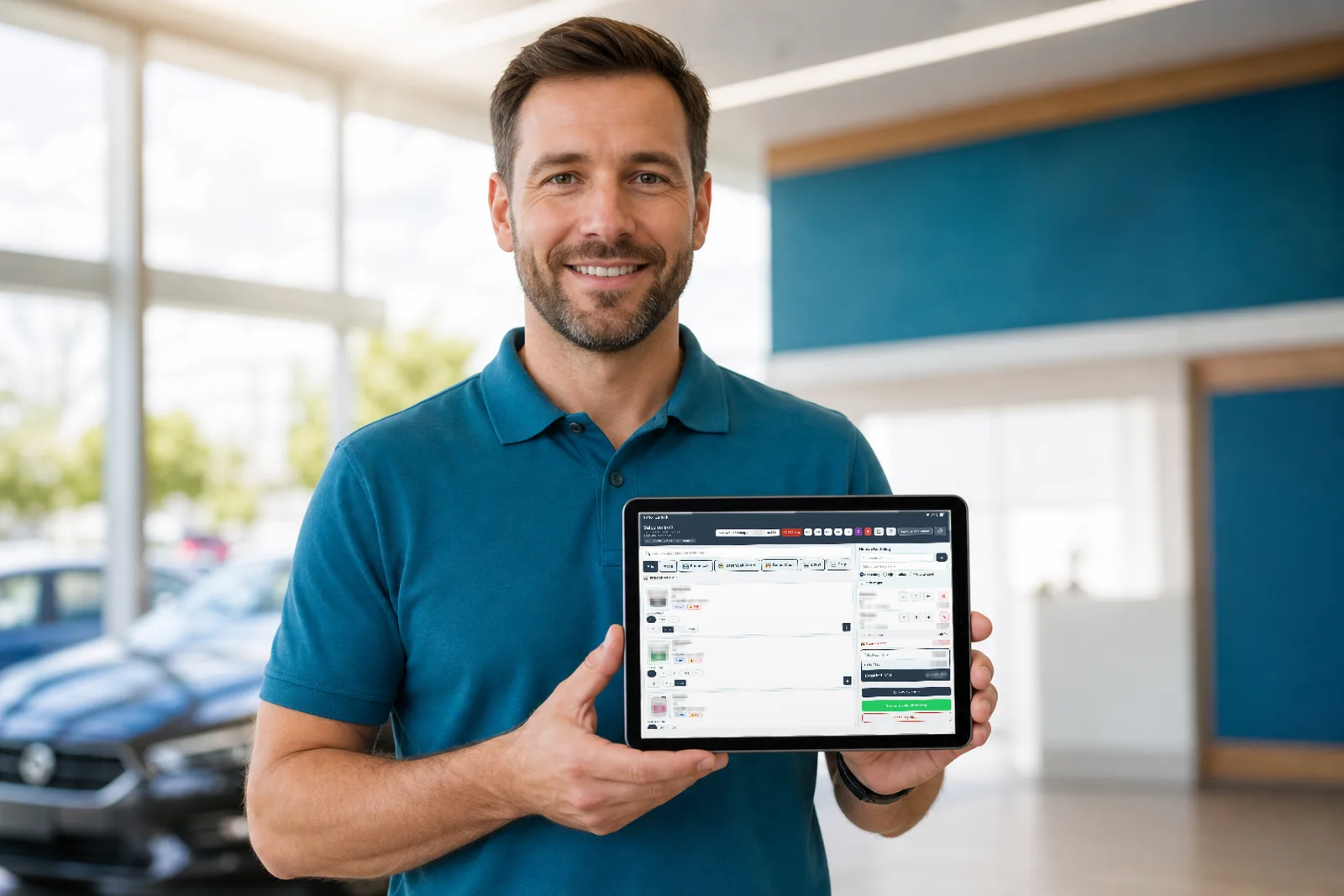
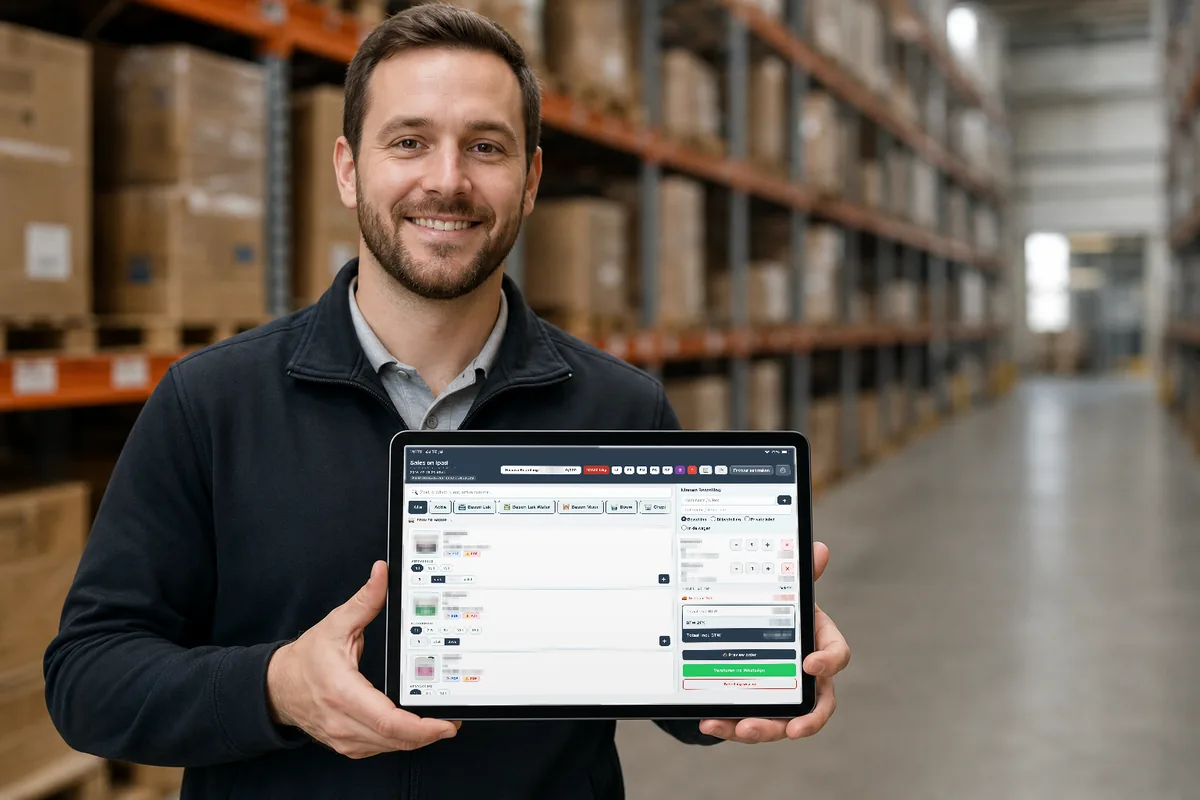
→ Lees hoe vertegenwoordigers orders opnemen bij de klant→ Découvrez comment les commerciaux prennent les commandes chez le client→ Read how sales reps take orders at the customer→ Lea cómo los comerciales toman pedidos en casa del cliente→ Lesen Sie, wie Außendienstler Bestellungen direkt beim Kunden aufnehmen

Volledige Handleiding

Alle functies op een rij — klik door de parameters en knoppen.

Manuel Complet

Toutes les fonctions en un coup d'œil — paramètres et boutons.

Full Manual

All features at a glance — settings and buttons explained.

Manual Completo

Todas las funciones de un vistazo — ajustes y botones explicados.

Vollständiges Handbuch

Alle Funktionen auf einen Blick — Parameter und Schaltflächen erklärt.

Overzicht van het SalesOnIPad-bestelscherm met 15 genummerde functies

📍 Overzichtsscherm — 15 functies in één oogopslag

1

Build-infotoont versie + deploytijd/commit

2

Zoekbalkzoek op productnaam, kleur of artikelnummer

3

Categorie-filtersfilter op productgroep

4

Franco-bannergratis-leveringsdrempel

5

Snelknoppenofferte (O), proforma (P), instellingen, factuur (F), parameters

6

PDF-fichestechnische fiche + veiligheidsfiche per product

7

Verpakkingsvariantenkies volume

8

Eenheid-togglestuk/doos/palet

9

Toevoegen aan bestelling

10

Klantnaam

11

BesteltypeBestelling/Bijbestelling/Private label/In de wagen

12

Totalenexcl./incl. BTW

13

Preview order

14

Versturen via WhatsApp

15

Bestelling wissen

1
KlantenImport via CSV of manueel. Tarief V (standaard) of X (speciaal). Per klant: adres, telefoon, e-mail, BTW-nr, BCE-nr en notities. Vult documenten automatisch in.
2
Bestelling plaatsenKies een klant → tarief auto. Zoek producten op naam, referentie of kleur. Klik → kleur, verpakking (stuk/doos/palet) en hoeveelheid.
3
Type bestellingBoven in het bestelvenster: Bestelling, Aanvullende bestelling, Private label of In de wagen. Het type staat op het document en in de historiek.
4
Doos & Palet1l en 0,75l → doos van 6. Grote formaten per stuk of palet. Paletkorting: 1 pal -8% | 5 pal -10% | 10 pal -14% | 15 pal -20% | 33 pal -25%.
5
Acties (korting per palet) NIEUWParam. → Actie: geef een product een extra korting die enkel geldt bij bestelling per palet. Ideaal voor tijdelijke promoties.
6
Gratis bij aankoop NIEUWParam. → Actie → Gratis bij aankoop: voor X gekochte stuks krijgt de klant Y stuks gratis. Verschijnt automatisch in de bestelling.
7
Franco leveringTotaal ≥ 330 l+kg → franco (gratis transport). Zoniet worden transportkosten aangerekend. Drempel instelbaar via Param. → Franco.
8
BTW & PrijsBTW % instelbaar (standaard 21%). Weergave excl./BTW/incl. Schakel Prijs uit om alle bedragen voor de klant te verbergen.
9
Productfiches (PDF) NIEUWParam. → Product: koppel een technische fiche en een veiligheidsfiche, instelbaar per taal. In de bestelling opent een fiche-icoon de juiste PDF; het icoon volgt de interfacetaal.
10
Versturen via WhatsAppGroene WhatsApp-knop → bestelling verzonden en opgeslagen in historiek en statistieken. Werkt voor elk type bestelling.
11
Versturen via E-mail NIEUWE-mailknop onder de bestelling → opent een e-mail met de bestelling. Gebruikt het e-mailadres van de klant indien bekend.
12
Proforma PDF (P)Rode P-knop → maakt een proforma en slaat op. Bedrijfsgegevens, logo, kleur, lettertype en opgemaakte kop/voet per taal via de klembordknop (Proforma-instellingen).
13
Offerte PDF (O)Paarse O-knop → maakt een offerte-PDF. Bedrijfsgegevens, twee bankrekeningen, logo, lettertype en teksten per taal via de bladknop (Offerte-instellingen).
14
Factuur PDF (F)F-knop → factuur met automatisch nummer. Ondersteunt BCE-nummer en Belgische gestructureerde mededeling (Param. → Facturen → Instellingen).
15
Creditnota NIEUWParam. → Facturen → terugpijl naast een factuur → maakt een creditnota die de factuur tegenbookt, met eigen nummering.
16
Kop- & voettekst opmaken NIEUWVóór het aanmaken van een offerte of proforma verschijnt een venster om de kop- en voettekst op te maken: vet, cursief, onderlijnd, lettergrootte, uitlijning, kleur en links.
17
Huisstijl: kleur & lettertype NIEUWStel de documentkleur (balken & accenten) en het lettertype in: Arial, Verdana, Tahoma, Trebuchet MS, Georgia, Times New Roman of Courier New. Geldt voor alle PDF's.
18
FactuuroverzichtParam. → Facturen: dashboard omzet excl/incl BTW, betaald, te laat. Euro-knop → markeer als betaald. Filter op status, herdruk of verwijder.
19
Bestelling, offerte of proforma bewerken NIEUWHistoriek → potlood → het document wordt herladen. Pas aan en verstuur opnieuw. Een bewaarde offerte of proforma bewerken werkt nu correct, zonder duplicaat.
20
Historiek met filters NIEUWDe historiek van bestellingen, offertes en proforma's heeft een filterbalk: filter op datum, besteltype en klant om snel het juiste document te vinden.
21
StatistiekenProducten: topverkopen. Klanten: omzet per klant/maand. Totale omzet per jaar/maand/week.
22
KlanthistoriekParam. → Klanten → boekicoon → alle bestellingen van de klant met datum, type en bedrag.
23
Lokale back-up NIEUWDe knop Sla Op onder de bestelling exporteert alle data naar een bestand. Via Param. kunt u dit bestand herladen (herstellen).
24
Cloud back-upParam. → Cloud → Dropbox verbinden. Pijl omhoog = opslaan, pijl omlaag = laden. Herinnering na 7 dagen.
25
PIN-code & snelle opstart NIEUWParam. → Cloud → PIN: 4 cijfers, gevraagd bij elke opstart. De app start nu sneller op met een laadscherm en voortgangsbalk.
26
Opslag NIEUWDe knop met het percentage in de bovenste balk toont de gebruikte lokale opslagruimte van de app.
27
BalkweergaveParam. → Weergave: knoppen in de bovenste balk aan/uitzetten.
28
Bedrijfsgegevens NIEUWParam. → Bedrijfsgegevens: app-naam, ondertitel, logo en tabtitel (browsertab). Taal (NL/FR/EN/ES) via de knoppen rechtsboven.

▲ Knoppen in de balk (van links naar rechts)

KnopFunctie
NL / FR / EN / ESWijzigt de taal van de app en de documenten.
Bestelling (cijfer)Toont of verbergt het bestelvenster. Het cijfer = aantal regels in de huidige bestelling.
O (paars)Genereert een offerte-PDF van de huidige bestelling.
P (rood)Genereert een proforma-PDF en slaat op.
KlembordOpent de Proforma-instellingen (gegevens, logo, kleur, lettertype, opgemaakte kop/voettekst).
BladOpent de Offerte-instellingen (gegevens, bankrekeningen, logo, lettertype, opgemaakte kop/voettekst).
TandwielOpent de Parameters (producten, acties, klanten, historiek, stats, facturen…).
FGenereert de factuur van de huidige bestelling.
% (opslag)Toont de gebruikte opslagruimte van de app.
Knoppen onder bestellingSla Op (lokale back-up), Verstuur via WhatsApp, Verstuur via E-mail, Wis bestelling.
Aperçu de l'écran de commande SalesOnIPad avec 15 fonctions numérotées

📍 Écran d'aperçu — 15 fonctions en un coup d'œil

1

Infos build

2

Barre de recherche

3

Filtres catégorie

4

Bandeau franco

5

Boutons rapides

6

Fiches PDF

7

Conditionnements

8

Sélecteur d'unité

9

Ajouter à la commande

10

Nom du client

11

Type de commande

12

Totaux

13

Aperçu commande

14

Envoyer via WhatsApp

15

Effacer commande

1
ClientsImport CSV ou manuel. Tarif V (standard) ou X (spécial). Par client : adresse, téléphone, e-mail, n° TVA, n° BCE et notes. Remplit automatiquement les documents.
2
Passer une commandeChoisissez un client → tarif auto. Recherchez les produits par nom, référence ou couleur. Cliquez → couleur, conditionnement (pièce/boîte/palette) et quantité.
3
Type de commandeEn haut du panneau : Commande, Commande complémentaire, Private label ou Dans la voiture. Le type apparaît sur le document et dans l'historique.
4
Boîte & Palette1l et 0,75l → boîte de 6. Grands formats à la pièce ou palette. Remises palette : 1 pal -8% | 5 pal -10% | 10 pal -14% | 15 pal -20% | 33 pal -25%.
5
Actions (remise par palette) NOUVEAUParam. → Action : donnez à un produit une remise supplémentaire applicable uniquement lors d'une commande par palette.
6
Gratuit à l'achat NOUVEAUParam. → Action → Gratuit à l'achat : pour X pièces achetées, le client reçoit Y pièces gratuites. Apparaissent automatiquement dans la commande.
7
Livraison francoTotal ≥ 330 l+kg → franco (transport gratuit). Sinon des frais de transport sont appliqués. Seuil configurable via Param. → Franco.
8
TVA & PrixTVA % configurable (défaut 21%). Affichage excl./TVA/incl. Désactivez Prix pour masquer tous les montants au client.
9
Fiches produit (PDF) NOUVEAUParam. → Produit : liez une fiche technique et une fiche de sécurité, réglables par langue. Dans la commande, une icône de fiche ouvre le bon PDF ; l'icône suit la langue de l'interface.
10
Envoyer via WhatsAppBouton vert WhatsApp → commande envoyée et sauvegardée dans l'historique et les statistiques. Fonctionne pour tout type de commande.
11
Envoyer par E-mail NOUVEAUBouton e-mail sous la commande → ouvre un e-mail avec la commande. Utilise l'adresse e-mail du client si connue.
12
Proforma PDF (P)Bouton rouge P → crée une proforma et la sauvegarde. Données société, logo, couleur, police et en-tête/pied mis en forme par langue via le bouton presse-papiers.
13
Offre PDF (O)Bouton violet O → crée une offre PDF. Données société, deux comptes bancaires, logo, police et textes par langue via le bouton feuille.
14
Facture PDF (F)Bouton F → facture avec numéro auto. Prend en charge le numéro BCE et une communication structurée belge.
15
Note de crédit NOUVEAUParam. → Factures → flèche retour à côté d'une facture → crée une note de crédit qui contre-passe la facture, avec sa propre numérotation.
16
Mise en forme en-tête/pied NOUVEAUAvant la création d'une offre ou d'une proforma, une fenêtre permet de mettre en forme l'en-tête et le pied : gras, italique, souligné, taille, alignement, couleur et liens.
17
Identité visuelle : couleur & police NOUVEAUDéfinissez la couleur des documents (barres & accents) et la police : Arial, Verdana, Tahoma, Trebuchet MS, Georgia, Times New Roman ou Courier New. Valable pour tous les PDF.
18
Suivi des facturesParam. → Factures : dashboard CA excl/incl TVA, payé, en retard. Bouton euro → marquer payé. Filtrez par statut, réimprimez ou supprimez.
19
Modifier commande, offre ou proforma NOUVEAUHistorique → crayon → le document est rechargé. Modifiez et renvoyez. Éditer une offre ou une proforma enregistrée fonctionne désormais correctement, sans doublon.
20
Historique avec filtres NOUVEAUL'historique des commandes, offres et proformas dispose d'une barre de filtres : filtrez par date, type de commande et client pour retrouver vite le bon document.
21
StatistiquesProduits : top ventes. Clients : CA par client/mois. CA total par année/mois/semaine.
22
Historique clientParam. → Clients → icône livre → toutes les commandes du client avec date, type et montant.
23
Sauvegarde locale NOUVEAULe bouton Sauvegarder sous la commande exporte toutes vos données dans un fichier. Via Param. vous pouvez recharger ce fichier (restaurer).
24
Sauvegarde CloudParam. → Cloud → Connecter Dropbox. Flèche haut = sauvegarder, flèche bas = charger. Rappel après 7 jours.
25
Code PIN & démarrage rapide NOUVEAUParam. → Cloud → PIN : 4 chiffres, demandé à chaque démarrage. L'app démarre désormais plus vite avec un écran de chargement et une barre de progression.
26
Stockage NOUVEAULe bouton avec le pourcentage dans la barre du haut indique l'espace de stockage local utilisé par l'app.
27
Affichage barreParam. → Affichage : activer/désactiver les boutons de la barre supérieure.
28
Données société NOUVEAUParam. → Données société : nom de l'app, sous-titre, logo et titre d'onglet (onglet du navigateur). Langue (NL/FR/EN/ES) via les boutons en haut à droite.

▲ Boutons de la barre (de gauche à droite)

BoutonFonction
NL / FR / EN / ESChange la langue de l'app et des documents.
Commande (chiffre)Affiche ou masque le panneau de commande. Le chiffre = nombre de lignes de la commande en cours.
O (violet)Génère une offre PDF de la commande en cours.
P (rouge)Génère une proforma PDF et la sauvegarde.
Presse-papiersOuvre les Paramètres proforma (données, logo, couleur, police, en-tête/pied mis en forme).
FeuilleOuvre les Paramètres offre (données, comptes bancaires, logo, police, en-tête/pied mis en forme).
EngrenageOuvre les Paramètres (produits, actions, clients, historique, stats, factures…).
FGénère la facture de la commande en cours.
% (stockage)Affiche l'espace de stockage utilisé par l'app.
Boutons sous la commandeSauvegarder (locale), Envoyer via WhatsApp, Envoyer par E-mail, Effacer la commande.
Overview of the SalesOnIPad order screen with 15 numbered features

📍 Overview screen — 15 features at a glance

1

Build info

2

Search bar

3

Category filters

4

Free delivery banner

5

Quick buttons

6

PDF sheets

7

Packaging options

8

Unit toggle

9

Add to order

10

Client name

11

Order type

12

Totals

13

Preview order

14

Send via WhatsApp

15

Clear order

1
ClientsCSV or manual import. Rate V (standard) or X (special). Per client: address, phone, email, VAT no., BCE no. and notes. Auto-fills all documents.
2
Place an orderChoose a client → rate applied automatically. Search products by name, reference or colour. Click → colour, packaging (unit/box/pallet) and quantity.
3
Order typeAt the top of the order panel: Order, Supplementary order, Private label or In the car. The type appears on the document and in history.
4
Box & Pallet1l and 0.75l → box of 6. Large formats per unit or pallet. Pallet discounts: 1 pal -8% | 5 pal -10% | 10 pal -14% | 15 pal -20% | 33 pal -25%.
5
Actions (pallet discount) NEWSettings → Action: give a product an extra discount that only applies when ordering by pallet. Ideal for temporary promotions.
6
Free on purchase NEWSettings → Action → Free on purchase: for X units bought the client receives Y units free. Free units appear automatically in the order.
7
Free deliveryTotal ≥ 330 l+kg → free shipping. Otherwise shipping costs are applied. Threshold configurable via Settings → Franco.
8
VAT & PriceVAT % configurable (default 21%). Display excl./VAT/incl. Disable Price to hide all amounts from the client.
9
Product sheets (PDF) NEWSettings → Product: link a technical sheet and a safety sheet, configurable per language. In the order a sheet icon opens the right PDF; the icon follows the interface language.
10
Send via WhatsAppGreen WhatsApp button → order sent and saved in history and statistics. Works for all order types.
11
Send by Email NEWEmail button under the order → opens an email with the order. Uses the client's email address if known.
12
Proforma PDF (P)Red P button → creates a proforma and saves it. Company data, logo, colour, font and styled header/footer per language via the clipboard button.
13
Quote PDF (O)Purple O button → creates a quote PDF. Company data, two bank accounts, logo, font and texts per language via the sheet button.
14
Invoice PDF (F)F button → invoice with auto number. Supports BCE number and Belgian structured communication (Settings → Invoices → Settings).
15
Credit note NEWSettings → Invoices → back arrow next to an invoice → creates a credit note that reverses the invoice, with its own numbering.
16
Header & footer styling NEWBefore creating a quote or proforma, a window lets you style the header and footer: bold, italic, underline, size, alignment, colour and links.
17
Branding: colour & font NEWSet the document colour (bars & accents) and the font: Arial, Verdana, Tahoma, Trebuchet MS, Georgia, Times New Roman or Courier New. Applies to all PDFs.
18
Invoice trackingSettings → Invoices: dashboard revenue excl/incl VAT, paid, overdue. Euro button → mark as paid. Filter by status, reprint or delete.
19
Edit order, quote or proforma NEWHistory → pencil → the document is reloaded. Edit and resend. Editing a saved quote or proforma now works correctly, with no duplicate.
20
History with filters NEWThe order, quote and proforma history has a filter bar: filter by date, order type and client to quickly find the right document.
21
StatisticsProducts: top sales. Clients: revenue per client/month. Total revenue per year/month/week.
22
Client historySettings → Clients → book icon → all orders for the client with date, type and amount.
23
Local backup NEWThe Save button under the order exports all your data to a file. Via Settings you can reload this file (restore).
24
Cloud backupSettings → Cloud → Connect Dropbox. Up arrow = save, down arrow = load. Reminder after 7 days.
25
PIN code & fast startup NEWSettings → Cloud → PIN: 4 digits, requested at every startup. The app now starts faster with a loading screen and progress bar.
26
Storage NEWThe button with the percentage in the top bar shows the local storage space used by the app.
27
Bar displaySettings → Display: enable/disable buttons in the top bar.
28
Company details NEWSettings → Company details: app name, subtitle, logo and tab title (browser tab). Language (NL/FR/EN/ES) via the buttons top right.

▲ Bar buttons (left to right)

ButtonFunction
NL / FR / EN / ESChanges the language of the app and documents.
Order (number)Shows or hides the order panel. The number = lines in the current order.
O (purple)Generates a quote PDF of the current order.
P (red)Generates a proforma PDF and saves it.
ClipboardOpens Proforma settings (data, logo, colour, font, styled header/footer).
SheetOpens Quote settings (data, bank accounts, logo, font, styled header/footer).
GearOpens Settings (products, actions, clients, history, stats, invoices…).
FGenerates the invoice for the current order.
% (storage)Shows the storage space used by the app.
Buttons under orderSave (local backup), Send via WhatsApp, Send by Email, Clear order.
Resumen de la pantalla de pedido de SalesOnIPad con 15 funciones numeradas

📍 Pantalla de resumen — 15 funciones de un vistazo

1

Info de build

2

Barra de búsqueda

3

Filtros de categoría

4

Banner de envío franco

5

Botones rápidos

6

Fichas PDF

7

Opciones de embalaje

8

Selector de unidad

9

Añadir al pedido

10

Nombre del cliente

11

Tipo de pedido

12

Totales

13

Vista previa

14

Enviar por WhatsApp

15

Borrar pedido

1
ClientesImportación CSV o manual. Tarifa V (estándar) o X (especial). Por cliente: dirección, teléfono, e-mail, nº IVA, nº BCE y notas. Rellena los documentos automáticamente.
2
Realizar un pedidoElija un cliente → tarifa automática. Busque productos por nombre, referencia o color. Pulse → color, embalaje (unidad/caja/palet) y cantidad.
3
Tipo de pedidoEn la parte superior del panel: Pedido, Pedido complementario, Marca blanca o En el coche. El tipo aparece en el documento y en el historial.
4
Caja & Palet1l y 0,75l → caja de 6. Formatos grandes por unidad o palet. Descuentos por palet: 1 pal -8% | 5 pal -10% | 10 pal -14% | 15 pal -20% | 33 pal -25%.
5
Acciones (descuento por palet) NUEVOAjustes → Acción: aplique a un producto un descuento adicional que solo se aplica al pedir por palet. Ideal para promociones temporales.
6
Gratis por compra NUEVOAjustes → Acción → Gratis por compra: por X unidades compradas, el cliente recibe Y unidades gratis. Aparecen automáticamente en el pedido.
7
Envío francoTotal ≥ 330 l+kg → franco (transporte gratuito). Si no, se aplican gastos de transporte. Umbral configurable en Ajustes → Franco.
8
IVA & Precio% de IVA configurable (por defecto 21%). Visualización sin/con IVA/total. Desactive Precio para ocultar todos los importes al cliente.
9
Fichas de producto (PDF) NUEVOAjustes → Producto: vincule una ficha técnica y una de seguridad, configurables por idioma. En el pedido, un icono de ficha abre el PDF correcto; el icono sigue el idioma de la interfaz.
10
Enviar por WhatsAppBotón verde de WhatsApp → pedido enviado y guardado en el historial y las estadísticas. Funciona para cualquier tipo de pedido.
11
Enviar por E-mail NUEVOBotón de e-mail bajo el pedido → abre un correo con el pedido. Usa el e-mail del cliente si se conoce.
12
Proforma PDF (P)Botón rojo P → crea una proforma y la guarda. Datos de empresa, logo, color, fuente y encabezado/pie con formato por idioma mediante el botón portapapeles.
13
Oferta PDF (O)Botón morado O → crea una oferta PDF. Datos de empresa, dos cuentas bancarias, logo, fuente y textos por idioma mediante el botón hoja.
14
Factura PDF (F)Botón F → factura con número automático. Admite número BCE y comunicación estructurada belga (Ajustes → Facturas → Ajustes).
15
Nota de crédito NUEVOAjustes → Facturas → flecha de retorno junto a una factura → crea una nota de crédito que contabiliza en contra la factura, con su propia numeración.
16
Formato de encabezado/pie NUEVOAntes de crear una oferta o proforma, una ventana permite dar formato al encabezado y al pie: negrita, cursiva, subrayado, tamaño, alineación, color y enlaces.
17
Identidad visual: color y fuente NUEVODefina el color de los documentos (barras y acentos) y la fuente: Arial, Verdana, Tahoma, Trebuchet MS, Georgia, Times New Roman o Courier New. Válido para todos los PDF.
18
Seguimiento de facturasAjustes → Facturas: panel de facturación sin/con IVA, pagado, vencido. Botón euro → marcar como pagada. Filtre por estado, reimprima o elimine.
19
Editar pedido, oferta o proforma NUEVOHistorial → lápiz → el documento se recarga. Edite y reenvíe. Editar una oferta o proforma guardada ahora funciona correctamente, sin duplicados.
20
Historial con filtros NUEVOEl historial de pedidos, ofertas y proformas dispone de una barra de filtros: filtre por fecha, tipo de pedido y cliente para encontrar rápido el documento.
21
EstadísticasProductos: ventas top. Clientes: facturación por cliente/mes. Facturación total por año/mes/semana.
22
Historial de clienteAjustes → Clientes → icono de libro → todos los pedidos del cliente con fecha, tipo e importe.
23
Copia local NUEVOEl botón Guardar bajo el pedido exporta todos los datos a un archivo. En Ajustes puede recargar este archivo (restaurar).
24
Copia en la nubeAjustes → Nube → Conectar Dropbox. Flecha arriba = guardar, flecha abajo = cargar. Recordatorio tras 7 días.
25
Código PIN y arranque rápido NUEVOAjustes → Nube → PIN: 4 dígitos, solicitado en cada inicio. La app ahora arranca más rápido con una pantalla de carga y barra de progreso.
26
Almacenamiento NUEVOEl botón con el porcentaje en la barra superior indica el espacio de almacenamiento local usado por la app.
27
Vista de barraAjustes → Visualización: activar/desactivar los botones de la barra superior.
28
Datos de empresa NUEVOAjustes → Datos de empresa: nombre de la app, subtítulo, logo y título de pestaña (pestaña del navegador). Idioma (NL/FR/EN/ES) con los botones de arriba a la derecha.

▲ Botones de la barra (de izquierda a derecha)

BotónFunción
NL / FR / EN / ESCambia el idioma de la app y de los documentos.
Pedido (número)Muestra u oculta el panel de pedido. El número = líneas del pedido actual.
O (morado)Genera una oferta PDF del pedido actual.
P (rojo)Genera una proforma PDF y la guarda.
PortapapelesAbre los Ajustes de proforma (datos, logo, color, fuente, encabezado/pie con formato).
HojaAbre los Ajustes de oferta (datos, cuentas bancarias, logo, fuente, encabezado/pie con formato).
EngranajeAbre los Ajustes (productos, acciones, clientes, historial, estadísticas, facturas…).
FGenera la factura del pedido actual.
% (almacenamiento)Muestra el espacio de almacenamiento usado por la app.
Botones bajo el pedidoGuardar (copia local), Enviar por WhatsApp, Enviar por E-mail, Borrar pedido.
Übersicht des SalesOnIPad-Bestellbildschirms mit 15 nummerierten Funktionen

📍 Übersichtsbildschirm — 15 Funktionen auf einen Blick

1

Build-Info

2

Suchleiste

3

Kategoriefilter

4

Frei-Haus-Banner

5

Schnellzugriff-Buttons

6

PDF-Datenblätter

7

Verpackungsvarianten

8

Einheiten-Umschalter

9

Zur Bestellung hinzufügen

10

Kundenname

11

Bestelltyp

12

Summen

13

Bestellvorschau

14

Per WhatsApp senden

15

Bestellung löschen

1
KundenImport per CSV oder manuell. Tarif V (Standard) oder X (Spezial). Pro Kunde: Adresse, Telefon, E-Mail, USt-Nr., BCE-Nr. und Notizen. Füllt Dokumente automatisch aus.
2
Bestellung aufgebenWählen Sie einen Kunden → Tarif automatisch. Suchen Sie Produkte nach Name, Referenz oder Farbe. Klick → Farbe, Verpackung (Stück/Karton/Palette) und Menge.
3
BestelltypOben im Bestellfenster: Bestellung, Nachbestellung, Private Label oder Im Wagen. Der Typ erscheint auf dem Dokument und im Verlauf.
4
Karton & Palette1l und 0,75l → Karton zu 6. Große Formate pro Stück oder Palette. Palettenrabatt: 1 Pal -8% | 5 Pal -10% | 10 Pal -14% | 15 Pal -20% | 33 Pal -25%.
5
Aktionen (Rabatt pro Palette) NEUParam. → Aktion: Geben Sie einem Produkt einen zusätzlichen Rabatt, der nur bei Bestellung pro Palette gilt. Ideal für zeitlich begrenzte Promotionen.
6
Gratis beim Kauf NEUParam. → Aktion → Gratis beim Kauf: Für X gekaufte Stück erhält der Kunde Y Stück gratis. Erscheint automatisch in der Bestellung.
7
Frei-Haus-LieferungGesamt ≥ 330 l+kg → frei Haus (kostenloser Transport). Andernfalls werden Transportkosten berechnet. Schwelle einstellbar über Param. → Franco.
8
MwSt. & PreisMwSt.-% einstellbar (Standard 21%). Anzeige exkl./MwSt./inkl. Schalten Sie Preis aus, um alle Beträge für den Kunden auszublenden.
9
Produktdatenblätter (PDF) NEUParam. → Produkt: Verknüpfen Sie ein technisches Datenblatt und ein Sicherheitsdatenblatt, einstellbar pro Sprache. In der Bestellung öffnet ein Datenblatt-Symbol das richtige PDF; das Symbol folgt der Oberflächensprache.
10
Senden via WhatsAppGrüne WhatsApp-Schaltfläche → Bestellung gesendet und in Verlauf und Statistik gespeichert. Funktioniert für jeden Bestelltyp.
11
Senden per E-Mail NEUE-Mail-Schaltfläche unter der Bestellung → öffnet eine E-Mail mit der Bestellung. Verwendet die E-Mail-Adresse des Kunden, falls bekannt.
12
Proforma-PDF (P)Rote P-Schaltfläche → erstellt eine Proforma und speichert sie. Firmendaten, Logo, Farbe, Schriftart und formatierte Kopf-/Fußzeile pro Sprache über die Zwischenablage-Schaltfläche (Proforma-Einstellungen).
13
Angebot-PDF (O)Violette O-Schaltfläche → erstellt ein Angebot-PDF. Firmendaten, zwei Bankkonten, Logo, Schriftart und Texte pro Sprache über die Blatt-Schaltfläche (Angebot-Einstellungen).
14
Rechnung-PDF (F)F-Schaltfläche → Rechnung mit automatischer Nummer. Unterstützt BCE-Nummer und belgische strukturierte Mitteilung (Param. → Rechnungen → Einstellungen).
15
Gutschrift NEUParam. → Rechnungen → Rückwärtspfeil neben einer Rechnung → erstellt eine Gutschrift, die die Rechnung storniert, mit eigener Nummerierung.
16
Kopf- & Fußzeile formatieren NEUVor dem Erstellen eines Angebots oder einer Proforma erscheint ein Fenster zum Formatieren der Kopf- und Fußzeile: fett, kursiv, unterstrichen, Schriftgröße, Ausrichtung, Farbe und Links.
17
Corporate Design: Farbe & Schriftart NEULegen Sie die Dokumentfarbe (Leisten & Akzente) und die Schriftart fest: Arial, Verdana, Tahoma, Trebuchet MS, Georgia, Times New Roman oder Courier New. Gilt für alle PDFs.
18
RechnungsübersichtParam. → Rechnungen: Dashboard Umsatz exkl./inkl. MwSt., bezahlt, überfällig. Euro-Schaltfläche → als bezahlt markieren. Nach Status filtern, neu drucken oder löschen.
19
Bestellung, Angebot oder Proforma bearbeiten NEUVerlauf → Stift → das Dokument wird neu geladen. Anpassen und erneut senden. Ein gespeichertes Angebot oder eine Proforma zu bearbeiten funktioniert jetzt korrekt, ohne Duplikat.
20
Verlauf mit Filtern NEUDer Verlauf der Bestellungen, Angebote und Proformen hat eine Filterleiste: Filtern Sie nach Datum, Bestelltyp und Kunde, um schnell das richtige Dokument zu finden.
21
StatistikProdukte: Topverkäufe. Kunden: Umsatz pro Kunde/Monat. Gesamtumsatz pro Jahr/Monat/Woche.
22
KundenverlaufParam. → Kunden → Buchsymbol → alle Bestellungen des Kunden mit Datum, Typ und Betrag.
23
Lokales Backup NEUDie Schaltfläche Speichern unter der Bestellung exportiert alle Daten in eine Datei. Über Param. können Sie diese Datei neu laden (wiederherstellen).
24
Cloud-BackupParam. → Cloud → Dropbox verbinden. Pfeil nach oben = speichern, Pfeil nach unten = laden. Erinnerung nach 7 Tagen.
25
PIN-Code & schneller Start NEUParam. → Cloud → PIN: 4 Ziffern, bei jedem Start abgefragt. Die App startet jetzt schneller mit einem Ladebildschirm und Fortschrittsbalken.
26
Speicher NEUDie Schaltfläche mit dem Prozentsatz in der oberen Leiste zeigt den genutzten lokalen Speicherplatz der App.
27
LeistenanzeigeParam. → Anzeige: Schaltflächen in der oberen Leiste ein-/ausschalten.
28
Firmendaten NEUParam. → Firmendaten: App-Name, Untertitel, Logo und Tab-Titel (Browser-Tab). Sprache (NL/FR/EN/ES/DE) über die Schaltflächen oben rechts.

▲ Schaltflächen in der Leiste (von links nach rechts)

SchaltflächeFunktion
NL / FR / EN / ES / DEÄndert die Sprache der App und der Dokumente.
Bestellung (Zahl)Zeigt oder verbirgt das Bestellfenster. Die Zahl = Anzahl Zeilen in der aktuellen Bestellung.
O (violett)Erzeugt ein Angebot-PDF der aktuellen Bestellung.
P (rot)Erzeugt ein Proforma-PDF und speichert es.
ZwischenablageÖffnet die Proforma-Einstellungen (Daten, Logo, Farbe, Schriftart, formatierte Kopf-/Fußzeile).
BlattÖffnet die Angebot-Einstellungen (Daten, Bankkonten, Logo, Schriftart, formatierte Kopf-/Fußzeile).
ZahnradÖffnet die Parameter (Produkte, Aktionen, Kunden, Verlauf, Statistik, Rechnungen…).
FErzeugt die Rechnung der aktuellen Bestellung.
% (Speicher)Zeigt den genutzten Speicherplatz der App.
Schaltflächen unter der BestellungSpeichern (lokales Backup), Senden via WhatsApp, Senden per E-Mail, Bestellung löschen.

In 3 stappen geïnstalleerd op uw iPad

Na activatie maakt u binnen één minuut een volwaardige app van de link, zonder App Store.

Installé sur votre iPad en 3 étapes

Après activation, créez une app complète depuis le lien en moins d'une minute, sans App Store.

Installed on your iPad in 3 steps

After activation, create a full app from the link in under a minute, no App Store needed.

Instalado en su iPad en 3 pasos

Tras la activación, cree una app completa desde el enlace en menos de un minuto, sin App Store.

In 3 Schritten auf Ihrem iPad installiert

Nach der Aktivierung machen Sie aus dem Link in unter einer Minute eine vollwertige App, ohne App Store.

1

Activeer uw licentieActivez votre licenceActivate your licenceActive su licenciaAktivieren Sie Ihre Lizenz

Kies het Premium-tarief en activeer de toegang voor uw verkoopteam via Stripe.Choisissez le tarif Premium et activez l'accès pour votre équipe via Stripe.Choose the Premium plan and activate access for your sales team via Stripe.Elija el plan Premium y active el acceso para su equipo de ventas vía Stripe.Wählen Sie den Premium-Tarif und aktivieren Sie den Zugang für Ihr Verkaufsteam über Stripe.

2

Tik op 'Deel' in SafariAppuyez sur 'Partager' dans SafariTap 'Share' in SafariPulse 'Compartir' en SafariTippen Sie in Safari auf 'Teilen'

Open uw unieke app-link na aankoop in Safari en tik op de deelknop ⎋.Ouvrez votre lien unique après achat dans Safari et appuyez sur le bouton Partager ⎋.Open your unique app link after purchase in Safari and tap the Share button ⎋.Abra su enlace único tras la compra en Safari y pulse el botón Compartir ⎋.Öffnen Sie Ihren einzigartigen App-Link nach dem Kauf in Safari und tippen Sie auf die Teilen-Schaltfläche ⎋.

3

Zet op BeginschermAjouter à l'écran d'accueilAdd to Home ScreenAñadir a pantalla de inicioZum Home-Bildschirm hinzufügen

Kies 'Zet op beginscherm'. De app staat nu direct als fullscreen-icoon klaar.Choisissez 'Sur l'écran d'accueil'. L'app est maintenant disponible en plein écran.Choose 'Add to Home Screen'. The app is now ready as a fullscreen icon.Elija 'Añadir a pantalla de inicio'. La app queda lista como icono a pantalla completa.Wählen Sie 'Zum Home-Bildschirm'. Die App steht jetzt direkt als Vollbild-Symbol bereit.

Kies het plan dat bij u past

Begin gratis of activeer direct volledige toegang voor uw hele team.

Choisissez le plan qui vous convient

Commencez gratuitement ou activez directement l'accès complet pour toute votre équipe.

Choose the plan that fits you

Start for free or activate full access for your whole team right away.

Elija el plan que mejor le convenga

Empiece gratis o active el acceso completo para todo su equipo al instante.

Wählen Sie den passenden Tarif

Starten Sie kostenlos oder aktivieren Sie sofort den vollen Zugang für Ihr ganzes Team.

Probeer gratisEssai gratuitFree trialPrueba gratisKostenlos testen
€0
7 dagen — geen kaartgegevens nodig7 jours — sans carte bancaire7 days — no card required7 días — sin tarjeta7 Tage — keine Karte nötig
Start gratis proefDémarrer l'essaiStart free trialEmpezar pruebaTest starten
MaandelijksMensuelMonthlyMensualMonatlich
€49 / maand/ mois/ month/ mes/ Monat
Per gebruiker — maandelijks opzegbaarPar utilisateur — résiliable chaque moisPer user — cancel monthlyPor usuario — cancelable cada mesPro Benutzer — monatlich kündbar
ActiverenActiverActivateActivarAktivieren
LifetimeÀ vieLifetimeDe por vidaLebenslang
€999 eenmaligpaiement uniqueone-timepago únicoeinmalig
Per gebruiker — voor altijd, geen abonnementPar utilisateur — pour toujours, sans abonnementPer user — forever, no subscriptionPor usuario — para siempre, sin suscripciónPro Benutzer — für immer, kein Abo
ActiverenActiverActivateActivarAktivieren